This guide will show you how to submit an Assignment in a Blackboard Learn Ultra course.
In Ultra, instructors may also choose to add functional questions to Assignments (like True/False, etc.) which should be answered as appropriate, but this guide will cover the most common use case: Uploading a file.
- Click on the assignment link.

- Click View Instructions.

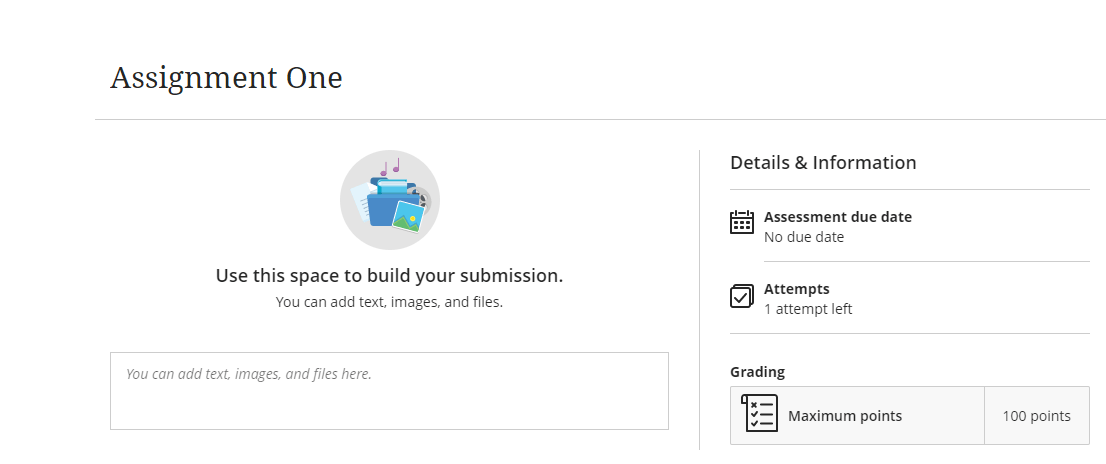
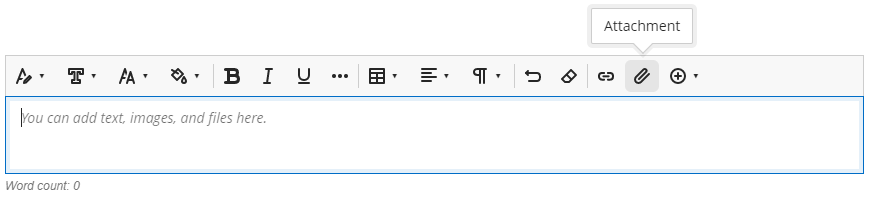
- That takes us to the submission area which contains a textbox where you can type a response and/or upload a file. When you click on the textbox, a toolbar appears above it (illustrated below). Click the Paperclip (Attachment) button in that toolbar to open the file attachment window.
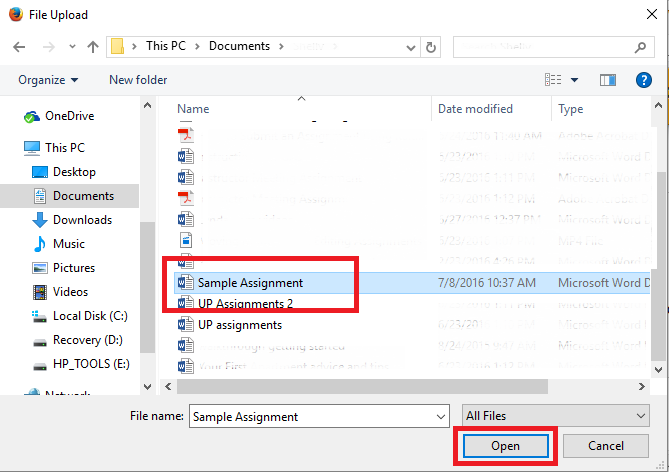
- Browse to the file you want to upload and click it, then click Open.
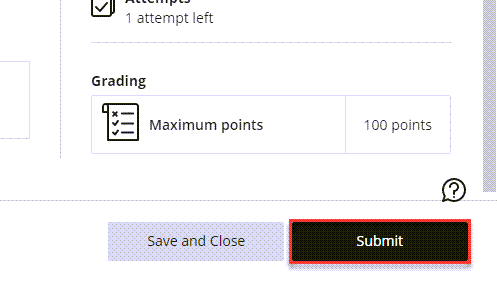
- Once you’re ready to submit the Assignment, click Submit near the bottom-right corner of the submission area.
You have now submitted your assignment!